Get Started/Quick Guide
We’ve put together a guide so you can easily get started and use our app!
How to Get Started with the App
-
Download our app for iOS from the Apple AppStore, or for Android from Google Play Store.
Search for: OurGreenCar
-
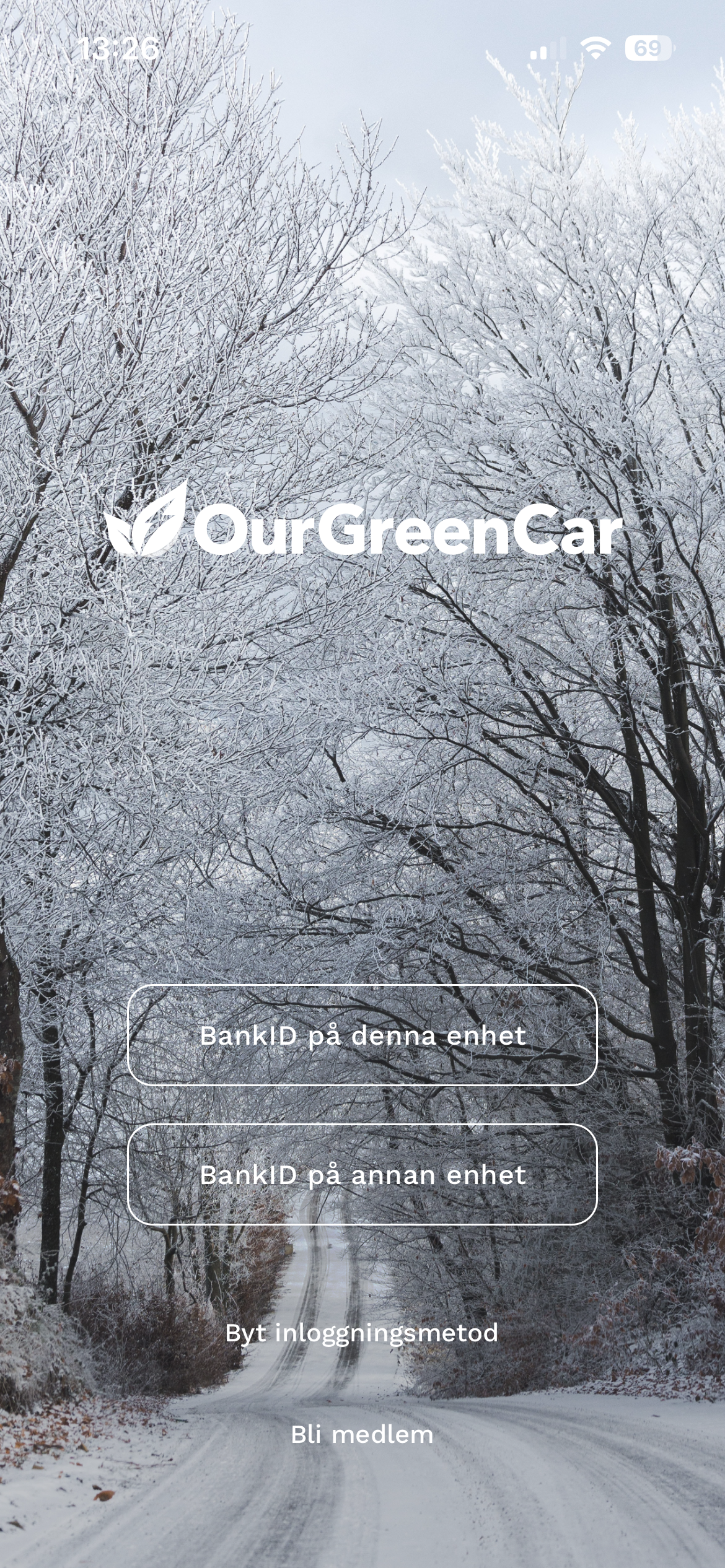
Open the app and log in using BankID
How to Navigate and Understand the Icons in the AppAt the bottom of the app, you will find four different icons. Below is a description of what each icon represents:
My bookings:
Here, you can view and edit the bookings you have created.
Vehicles:
Here, you can view a complete list of vehicles and create new bookings.
Notification Center:
Here, you can view news, updates, and offers sent out to you.
Profile:
View history, pricing, and manage your profile
In the vehicle view, you will find 3 icons:
Maps – Tap this icon to filter your available vehicles using an interactive map.
Search – Tap this icon to filter available vehicles by searching, for example, by license plate number.
Filter – Tap the icon to filter available vehicles by vehicle type, city, and your vehicle pools.
Vehicle Available – The grey icons indicate that the selected vehicle is available during the marked time period.
Vehicle Occupied – The orange icons indicate that the selected vehicle is occupied during the marked time period.